How-to guide · Porchday: Delivery Dates
How to show estimated delivery dates on Shopify
Show an estimated delivery date on your Shopify product pages with Porchday, worked out from how you ship.
When will it get here? Shoppers want to know before they buy, and a date on the product page answers that up front.
It only helps if you can keep it, so it should follow your cutoff, packing time, days off and transit time.
This guide uses Porchday: Delivery Dates, our delivery date app. Most stores are set up in about ten minutes.
At the end there's a short section on doing it without an app.
Jump to: What you need · Steps · Troubleshooting · Without an app
What you need
- A Shopify store, and permission to install apps on it.
- Your order cutoff time, how many business days it takes to pack an order, and your usual transit time, fastest and slowest.
- The days you don't process or ship, like holidays or a day the warehouse is closed.
- An Online Store 2.0 theme for the product page block, such as Dawn, Horizon and most themes from the Theme Store.
Some options, like the cart and cart drawer, automatic holiday calendars, rules, and the order status, Thank you and checkout blocks, depend on your Porchday plan. The Porchday page lists what each plan includes.
1. Install Porchday
Install Porchday: Delivery Dates from the Shopify App Store and approve the permissions. You land on the Porchday Home page inside your Shopify admin.
Home has a setup guide, and every step has a button that takes you straight to the right place in Shopify. Porchday never edits your theme files: everything on your storefront is an app block or app embed you control in the theme editor.
2. Set your delivery promise
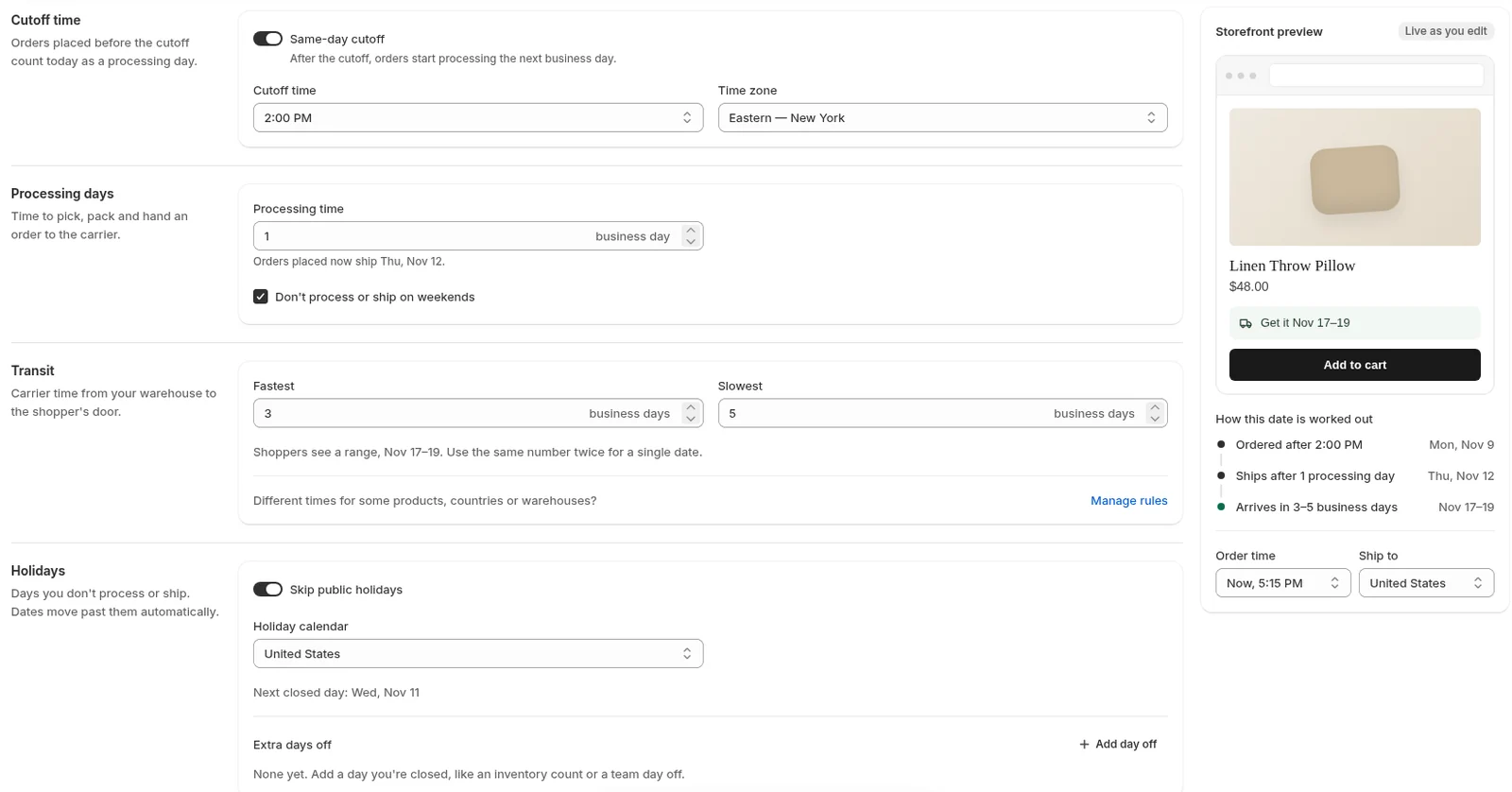
Open Delivery settings in Porchday and fill in four sections.
Cutoff time: orders placed before it count as today. Switch the cutoff on, set the time, and pick your time zone. After the cutoff, orders start processing the next business day.
Processing days: how many business days it takes to pick, pack and hand an order to the carrier. Check Don't process or ship on weekends if you don't.
Transit: the fastest and slowest carrier time, in business days. Shoppers see a range. Use the same number twice for a single date.
Holidays: the days you don't process or ship. Turn on Skip public holidays and choose a holiday calendar, or add extra days off, like an inventory count or a team day off. Dates move past them automatically.
The storefront preview shows the date a shopper would see right now, and How this date is worked out shows each step. When it looks right, click Publish. Nothing shows on your store until you publish.
3. Add the date to your product page
On Porchday Home, click Add to product page in the setup guide. Shopify opens the theme editor on your product template with the Porchday Delivery date block already added to the main product section.
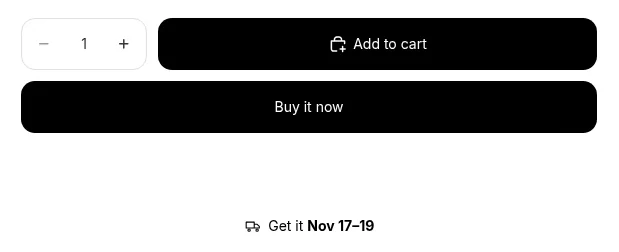
Drag the block where you want it. Just under the Add to cart button works well for most stores. Pick a design and colors in the block settings, then click Save.
To add it by hand, go to Online Store › Themes in Shopify, click Customize on your live theme, and switch to a product template. In the product information section, click Add block, open the Apps tab and pick Delivery date.
If your theme has more than one product template, add the block to each one you use.
4. Show it in the cart and cart drawer
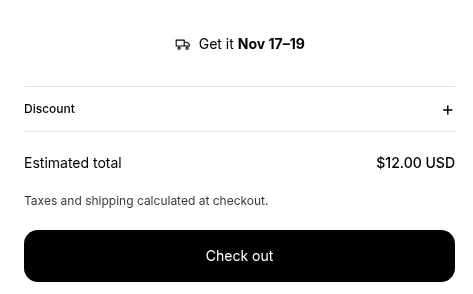
The date in the slide-out cart is an app embed, which is a switch rather than a block. Click Add to cart drawer on Porchday Home, and Shopify opens the theme editor's App embeds panel with Cart drawer delivery date turned on. Click Save.
The embed finds the drawer on its own for Dawn, Horizon and Impulse, and on other themes it puts the date just above the checkout button. On most themes it also covers the full cart page. For more control there, add the Cart delivery date block to your cart template.
5. Add it to order status, Thank you and checkout
These pages are edited in Shopify's checkout and accounts editor, not the theme editor. From Porchday Home, click Open order status editor or Open checkout editor, add the Porchday block, put it where you want it, and click Save.
The order status page works on every Shopify plan, so shoppers see the date you promised when they check on their order. The Thank you page and checkout need Shopify Plus: Shopify only lets apps add blocks there on Shopify Plus stores. If you're not on Plus, Porchday's setup guide marks the checkout step Shopify Plus only, and the order status page covers the date instead.
6. Check where it shows
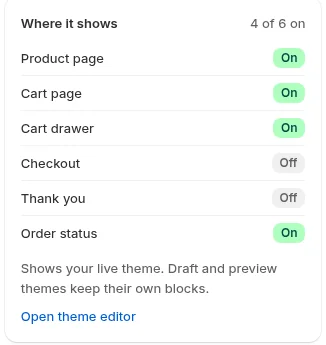
Porchday Home has a Where it shows card. It lists each place the date can appear (product page, cart page, cart drawer, checkout, Thank you and order status) with On or Off next to each. It reads your live theme. Draft and preview themes keep their own blocks.
Then open a product on your live store and look for the date under the buttons. Add it to the cart and open the cart drawer to see the same date there.
Tips and troubleshooting
I added the block but don't see a date
Make sure you clicked Publish in Delivery settings: drafts aren't shown to shoppers. Check that you saved the theme editor, and that you edited your live theme. Blocks added to a draft theme only show once that theme is published. If the product is out of stock and you haven't set a stock rule, the date may be hidden on purpose. Your Porchday plan also sets which products and places show the date.
The date looks wrong
Check the cutoff time and time zone. The cutoff uses your store's time zone, not the shopper's. Add any days off under Holidays. A product, collection or tag rule overrides your default promise, so check Rules for anything that applies to that product.
The cart drawer doesn't show the date
Confirm Cart drawer delivery date is turned on under Customize › App embeds, and saved. On a heavily customized theme, give the embed a CSS selector for where the date should go, or email hello@tekraid.com and we'll find the right one for you.
Home says a block is missing
Porchday checks your live theme and checkout each time you open Home. If a block was removed, moved to a draft theme, or lost during a reinstall, the step shows as not done. Use the button on that step to add it back.
Does it ask shoppers for their address?
No. Dates are country-level: Porchday uses the shopper's country to pick the right promise, and never asks for or reads a ZIP code, postal code or street address.
Doing it without an app
You can put a delivery line on your store without an app. The usual ways, and their limits:
- A fixed line of text. Add a line like “Usually ships in 1 to 2 business days” to your product description or to a text block in your theme. It's quick and works on any theme. But it says the same thing all day, every day: it can't move with your order cutoff, skip weekends and holidays, or add your processing time, so it can only describe a range, not give a date.
- A date you change by hand. Some stores type a date and update it each morning. That works until someone forgets, or a holiday or a missed cutoff slips through.
- Your own theme code. A developer can write code that works out a date in the theme. Then the logic is yours to keep up: time zones, cutoffs, weekends, a holiday list for every year, and keeping it working when you change or update your theme.
If one shipping time fits everything and a range is enough, a fixed line is fine. If you want a real date that follows your cutoff, processing time and days off, that's the job Porchday does.
Next steps
- Install Porchday from the Shopify App Store
- Read the full Porchday setup guide
- Questions? Email hello@tekraid.com and someone on the TEKRAID team will help.